Track Packer artifact package metadata with HCP Packer
If you discover a vulnerability in a package used by multiple artifacts, you need to know which artifacts to update. A software bill of materials (SBOM) documents which package versions a specific artifact contains, helping teams quickly identify the artifacts they need to update.
HCP Packer lets you store SBOMs for each artifact version. By storing this information with your artifact metadata, you establish a source of truth for exactly what each artifact contains.
In this tutorial, you will modify a Packer template to create an SBOM and upload it to HCP Packer. You will then review how to access this SBOM and use it to identify vulnerabilities, update the artifact, and create a new SBOM. You will also create an enforced provisioner to ensure that all builds in your HCP Packer bucket follow your organization's best security practices.
Prerequisites
This tutorial assumes that you are familiar with the standard Packer and HCP Packer workflows. If you are new to Packer, complete the Get Started tutorials first. If you are new to HCP Packer, complete the Get Started with HCP Packer tutorials first.
To follow along with this tutorial, you will need:
- Packer 1.15.4+ installed locally.
- An HCP account with the HCP Packer Standard tier.
- An HCP Packer registry.
- Docker Desktop installed locally.
Configure HCP service principal
Packer needs service principal credentials to authenticate against HCP and store artifact metadata. In your HCP project's dashboard, go to Access control (IAM) in the left navigation menu, then select the Service principals tab.
Create a service principal named packer with the Contributor role.
Once you create the service principal, HCP shows you a detailed overview page. Click Keys in the left navigation bar, then click Generate key to create a client ID and secret.
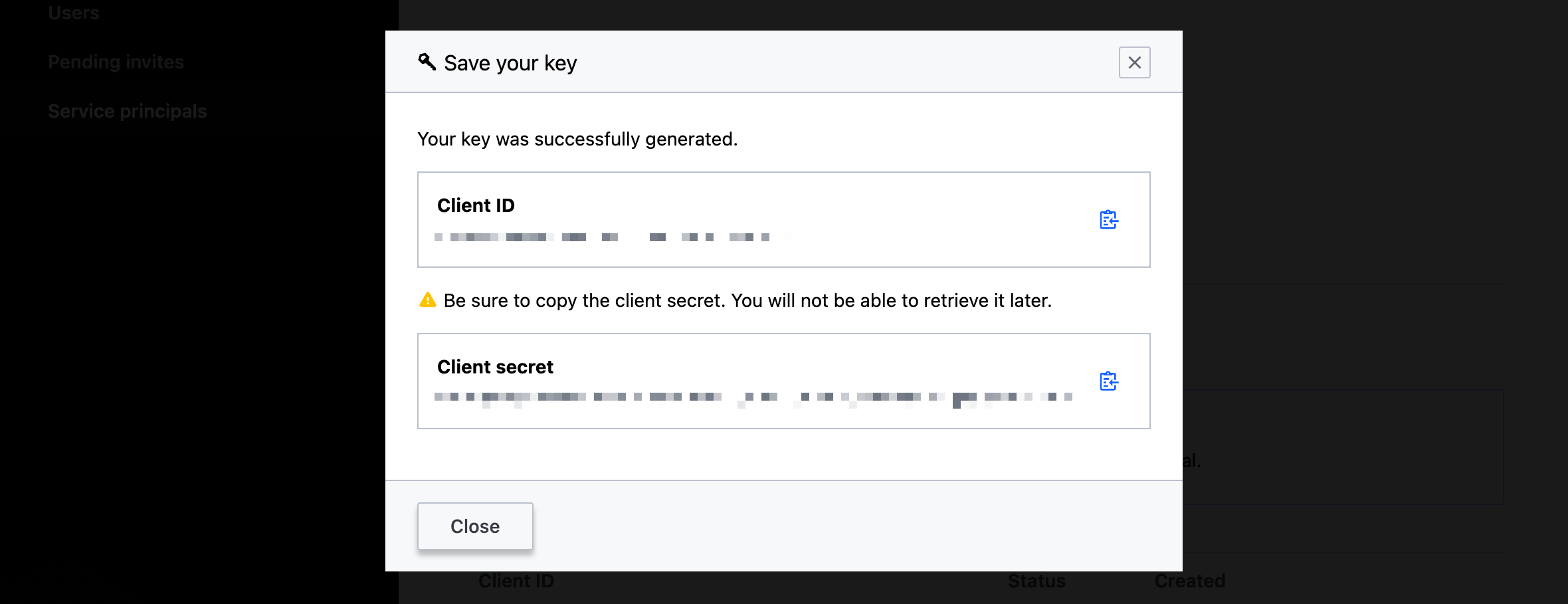
Next, in your terminal, set an environment variable for the client ID.
$ export HCP_CLIENT_ID=
Then, set an environment variable for your client secret.
$ export HCP_CLIENT_SECRET=
Copy these values from HCP Packer. You cannot access these keys after you generate them, so in production, store the keys in a secure location, such as HCP Vault.
Create the Packer template
In this section, you will use a Packer template that creates an Ubuntu Docker container and update it to generate and upload an SBOM.
Create a new directory to store your Packer template.
$ mkdir learn-packer-sbom
Navigate to the new directory.
$ cd learn-packer-sbom
Create a file named docker-ubuntu.pkr.hcl.
$ touch docker-ubuntu.pkr.hcl
Open the docker-ubuntu.pkr.hcl file, paste the following HCL, and save the file.
docker-ubuntu.pkr.hcl
variable "image_version" {
  type    = string
  default = "0.1"
}

packer {
  required_plugins {
    docker = {
      version = ">= 1.1.2"
      source  = "github.com/hashicorp/docker"
    }
  }
}

source "docker" "ubuntu" {
  image  = "ubuntu:22.04"
  commit = true
}

hcp_packer_registry {
  bucket_name = "learn-packer-sbom"
  description = "Generate and store a software bill of materials in HCP Packer."
}

build {
  name = "learn-packer-sbom"
  sources = [
    "source.docker.ubuntu"
  ]

  # Install curl and ruby
  provisioner "shell" {
    inline = [
      "apt-get update",
      "apt-get -y install sudo curl ruby",
    ]
  }

  post-processor "docker-tag" {
    repository = "learn-packer-sbom"
    tags       = ["${var.image_version}"]
  }
}
This Packer template creates a new Docker container from the ubuntu:22.04 base image, installs curl and ruby, and pushes the metadata to HCP Packer. This example Packer template serves as a starting point. In the next section you will generate and upload an SBOM for your template.
Generate the software bill of materials
Packer can automatically generate SBOM files, or you can manually generate and upload them. HCP Packer supports two standardized SBOM formats: CycloneDX and Software Package Data Exchange (SPDX). You must generate these SBOMs as JSON files.
Add the following provisioner block under the existing shell provisioner to use Packer to automatically generate an SBOM file.
docker-ubuntu.pkr.hcl
  # Generate SBOM
  provisioner "hcp-sbom" {
    auto_generate = true
    destination   = "sbom_cyclonedx_${var.image_version}.json"
    sbom_name     = "sbom-cyclonedx-ubuntu"
  }
The hcp-sbom provisioner generates and uploads the SBOM to HCP Packer, uses the sbom_name to store it in HCP Packer as "sbom-cyclonedx-ubuntu", and associates it with the artifact version. The optional destination argument saves a copy of the SBOM on the local machine. If you don't supply the optional sbom_name, Packer uses the build fingerprint as the SBOM name. If your Packer configuration has multiple build sources, Packer uploads an SBOM for each artifact it creates.
Next, initialize the Packer template.
$ packer init .
Then, build the Packer template.
$ packer build .
Tracking build on HCP Packer with fingerprint "01JH8VYRMR3SGYV3Z8QM5D5S5C"
learn-packer-sbom.docker.ubuntu: output will be in this color.

==> learn-packer-sbom.docker.ubuntu: Creating a temporary directory for sharing data...
==> learn-packer-sbom.docker.ubuntu: Pulling Docker image: ubuntu:22.04

##...

==> Wait completed after 31 seconds 542 milliseconds

==> Builds finished. The artifacts of successful builds are:
--> learn-packer-sbom.docker.ubuntu: Imported Docker image: sha256:3c13e916ccaf4e82319ad8bd7aa8f3ae923836da4ff0b59cc5f8f646ae302384
--> learn-packer-sbom.docker.ubuntu: Imported Docker image: learn-packer-sbom:0.1 with tags learn-packer-sbom:0.1
--> learn-packer-sbom.docker.ubuntu: Published metadata to HCP Packer registry packer/learn-packer-sbom/versions/01JH8VYSSHTAGVRDC4WWEGSWQS
Review the software bill of materials
Open the sbom_cyclonedx_0.1.json file on your local machine and review the contents. This file contains metadata about the operating system, installed packages, and the SBOM itself. For example, the following segment shows information about ruby, which you installed as a part of the Packer build process.
sbom_cyclonedx_0.1.json
##...
    {
      "bom-ref": "pkg:deb/ubuntu/libruby3.0@3.0.2-7ubuntu2.12?arch=arm64&distro=ubuntu-22.04&package-id=ced121fbc284ed31&upstream=ruby3.0",
      "type": "library",
      "publisher": "Ubuntu Developers <ubuntu-devel-discuss@lists.ubuntu.com>",
      "name": "libruby3.0",
      "version": "3.0.2-7ubuntu2.12",
      "licenses": [
        {
          "license": {
            "id": "BSD-2-Clause"
          }
        },
        ##...
      ],
      "cpe": "cpe:2.3:a:libruby3.0:libruby3.0:3.0.2-7ubuntu2.12:*:*:*:*:*:*:*",
      "purl": "pkg:deb/ubuntu/libruby3.0@3.0.2-7ubuntu2.12?arch=arm64&distro=ubuntu-22.04&upstream=ruby3.0",
      "properties": [
        {
          "name": "syft:package:type",
          "value": "deb"
        },
        {
          "name": "syft:location:0:path",
          "value": "var/lib/dpkg/status"
        },
        {
          "name": "syft:location:1:path",
          "value": "usr/share/doc/libruby3.0/copyright"
        },
        {
          "name": "syft:location:2:path",
          "value": "var/lib/dpkg/info/libruby3.0:arm64.md5sums"
        },
        {
          "name": "syft:metadata:installedSize",
          "value": "21744"
        },
        {
          "name": "syft:metadata:source",
          "value": "ruby3.0"
        }
      ]
    },
##...
Navigate to your learn-packer-sbom bucket in HCP Packer, click Versions in the left navigation bar, then click the v1 version. On the v1 page, click the docker.ubuntu version.
The version overview page shows all the metadata of the build, including the Packer plugins, build labels, and Docker information. In the Artifacts section, click the Download SBOMs drop-down to see the sbom-cyclonedx-ubuntu SBOM file you uploaded as part of your Packer build.
Scroll down to Packages to see the packages listed in the version's associated SBOM. In the Search package names text box, enter ruby to see every package related to Ruby in the SBOM, along with the version of each package.

Next to each package, HCP Packer lists the SBOM that it got the package information from, and includes a link to download the associated SBOM file.
HCP Packer automatically scans each SBOM in an HCP Packer bucket for known vulnerabilities. To review the results from this scan, navigate back to the learn-packer-sbom bucket overview and click Vulnerabilities in the left navigation panel.

HCP Packer shows a summary of the top vulnerable packages, top affected channels, and a breakdown of CVEs by severity. Below this summary, HCP Packer lists all known CVEs affecting your bucket, the affected package name, and the version of the package that contains the vulnerabilities.
Update the Packer template
Next, update your Packer template to use a newer version of Ubuntu which contains fixes for some of the vulnerabilities found in your scan.
In your docker-ubuntu.pkr.hcl file, update the Ubuntu image tag to 26.04.
docker-ubuntu.pkr.hcl
source "docker" "ubuntu" {
  image  = "ubuntu:26.04"
  commit = true
}
Run the Packer build again with the -var flag to set the image_version variable to 0.2.
$ packer build -var "image_version=0.2" .
Tracking build on HCP Packer with fingerprint "01JH8WFSTDTF66FAEG9PDCCTWG"
learn-packer-sbom.docker.ubuntu: output will be in this color.

==> learn-packer-sbom.docker.ubuntu: Creating a temporary directory for sharing data...
==> learn-packer-sbom.docker.ubuntu: Pulling Docker image: ubuntu:26.04

##...

==> Wait completed after 31 seconds 257 milliseconds

==> Builds finished. The artifacts of successful builds are:
--> learn-packer-sbom.docker.ubuntu: Imported Docker image: sha256:2ed90326bc8daaed42c96b29a9431fbb24d6e1fa87b6157eda85c6540769ba80
--> learn-packer-sbom.docker.ubuntu: Imported Docker image: learn-packer-sbom:0.2 with tags learn-packer-sbom:0.2
--> learn-packer-sbom.docker.ubuntu: Published metadata to HCP Packer registry packer/learn-packer-sbom/versions/01JH8WFTF4WJ78EWNHE7AP7PRD
HCP Packer displays vulnerabilities across all builds in a bucket. To make it easier to see the reported vulnerabilities in the new version, remove the 0.1 version of your Packer artifact. Click Versions in the left navigation panel, click the ellipsis (...) next to the version named v1, and click Delete version. Click Delete to confirm the deletion.
Now that your bucket only contains the latest version of your Packer artifact, review its vulnerabilities. Click Vulnerabilities in the left navigation panel.

Notice that while additional vulnerabilities remain and require further action, when you upgraded to a newer version of Ubuntu it resolved several critical vulnerabilities.
Enforce provisioners
HCP Packer lets you define enforced provisioner blocks that must run on every build in a bucket. Enforced provisioners are useful to ensure every build follows your organization's best practices and security requirements. For example, you can create an enforced provisioner using the hcp-sbom provisioner to make sure every build in a bucket generates and stores an SBOM.
In this section, create an enforced provisioner to configure Ubuntu with good security defaults.
Navigate to the HCP Packer overview page and click Enforced Provisioners in the left navigation panel. Next, click Create provisioner.
In the Provisioner Name field, enter "Ubuntu Security". Next, under Provisioner Label, create a label with the key "os" and a value of "ubuntu". Click Save.
On the next screen, enter "1.0" for the Version, and enter the following text for a Version description:
Enforce best security practices for Ubuntu
Under Packer template format, click HCL. Then, enter the following configuration under HCL2 Template Content:
provisioner "shell" {
  inline = ["echo '=> Running Ubuntu hardening steps from enforced provisioner'"]
}

# Prevent root login
provisioner "shell" {
  inline = ["passwd -l root"]
}

# Limit access to /etc/shadow to root
provisioner "shell" {
  inline = ["chmod 600 /etc/shadow"]
}

# Upgrade all packages
provisioner "shell" {
  inline = [
    "apt-get update",
    "apt-get upgrade -y",
    "apt-get clean",
    "rm -rf /var/lib/apt/lists/*"
  ]
}

provisioner "shell" {
  inline = ["echo '=> Ubuntu hardening enforced provisioner complete'"]
}
These provisioner blocks perform the following steps to improve the security of your Ubuntu image:
- Disables the ability to log in as the root user using a password
- Ensures that only the root user can read the
/etc/shadowfile, which contains the hashed passwords for every user on the local machine - Upgrades all the installed packages to the latest version, then clears the local package manager cache.
This enforced provisioner also includes two echo statements to help identify the enforced provisioner in the output of your Packer builds.
Notice that these provisioner blocks have the same syntax as normal Packer configuration. These provisioner blocks run after the provisioner blocks in your configuration, but before any post-processor blocks.
Click Save to create the enforced provisioner.
HCP Packer redirects you to the enforced provisioner overview page. Next, you must link your enforced provisioner version to your HCP Packer bucket. Click the Ubuntu Security enforced provisioner to go to the Versions page.
Click the ellipsis (...) in the Actions column in the row for version 1.0, then click Managed linked buckets. Under the Select buckets dropdown, select the learn-packer-sbom bucket, then click Apply Changes.
Return to your terminal and start a new Packer build.
$ packer build -var "image_version=0.3" .
Tracking build on HCP Packer with fingerprint "01KV6F7BBJ68YC5C2H52RJ2KFK"
Loaded 5 enforced provisioner(s) from HCP block "Ubuntu Security" and template type "HCL2"
learn-packer-sbom.docker.ubuntu: output will be in this color.

==> learn-packer-sbom.docker.ubuntu: Creating a temporary directory for sharing data...
==> learn-packer-sbom.docker.ubuntu: Pulling Docker image: ubuntu:26.04
==> learn-packer-sbom.docker.ubuntu: 26.04: Pulling from library/ubuntu

##...

==> learn-packer-sbom.docker.ubuntu: => Running Ubuntu hardening steps from enforced provisioner

##...

==> learn-packer-sbom.docker.ubuntu: => Ubuntu hardening enforced provisioner complete
==> learn-packer-sbom.docker.ubuntu: Committing the container
==> learn-packer-sbom.docker.ubuntu: Image ID: sha256:51b6f49b61da7229a9ead5cf6f3042b5d7493487b3617e60e054962de434521d
==> learn-packer-sbom.docker.ubuntu: Killing the container: abd005a31439444d26b3434cdb7fb9d8a39c8a6adbd0e479d07395499eac03ba
==> learn-packer-sbom.docker.ubuntu: Running post-processor:  (type docker-tag)
==> learn-packer-sbom.docker.ubuntu (docker-tag): Tagging image: sha256:51b6f49b61da7229a9ead5cf6f3042b5d7493487b3617e60e054962de434521d
==> learn-packer-sbom.docker.ubuntu (docker-tag): Repository: learn-packer-sbom:0.3
Build 'learn-packer-sbom.docker.ubuntu' finished after 39 seconds 603 milliseconds.
Notice that Packer automatically ran each provisioner block that you defined in your enforced provisioner.
Clean up your infrastructure
Delete the Docker containers you built with Packer.
$ docker rmi learn-packer-sbom:0.1 learn-packer-sbom:0.2 learn-packer-sbom:0.3
Next, remove the HCP Packer bucket you created. In HCP Packer, navigate to your learn-packer-sbom bucket, click the Manage dropdown, and click Delete bucket. When HCP Packer prompts you to confirm that you want to delete the bucket, click Delete bucket to remove the two artifacts you built in this tutorial.
Finally, remove the enforced provisioner you created. In HCP Packer, navigate to your Ubuntu Security provisioner, click the ellipsis (...), and click Delete Provisioner. When HCP Packer prompts you to confirm that you want to delete the enforced provisioner, click Delete provisioner.
Next steps
In this tutorial, you updated a Packer template to generate a software bill of materials, then you uploaded it to HCP Packer with the hcp-sbom Packer provisioner. Then, you used HCP Packer's vulnerability scanning to identify critical vulnerabilities and update your build. Finally, you created an enforced provisioner to harden the security for all builds in your HCP Packer bucket.
For more information on topics covered in this tutorial, check out the following resources:
- Read the HCP SBOM provisioner documentation.
- Learn how to build a golden image pipeline with HCP Packer.
- Learn how to automate Packer with GitHub Actions.
- Read the Enforced provisioners documentation.